
Install MCP on Windows in 10 Minutes, No Config
In short: with MCP DeskManager, installing an MCP server on Windows takes about ten minutes and no technical skills. Download an installer, enter your license key, paste one address into Claude or ChatGPT. No router ports to open, no fixed IP, no JSON files to edit.
Why it is usually complicated
Most MCP servers for Windows are built for developers. To use them you typically have to:
- install Python or Node.js and start the server from the command line;
- edit the client's configuration file by hand (for example
claude_desktop_config.json); - to use it remotely, open a router port, get a fixed IP or build your own SSH tunnel;
- take care of HTTPS and authentication yourself, or the PC is exposed to anyone who finds the address.
It works, but it is a sysadmin job. MCP DeskManager does all of it on its own during setup.
What you need
- A PC running Windows 10 or Windows 11, 64-bit, connected to the internet: this is the computer the assistant will control.
- A Claude or ChatGPT account that lets you add custom MCP connectors.
- An MCP DeskManager license: the key reaches your inbox right after checkout. See the plans.
Step-by-step installation
- Run the installer you downloaded from the download page.
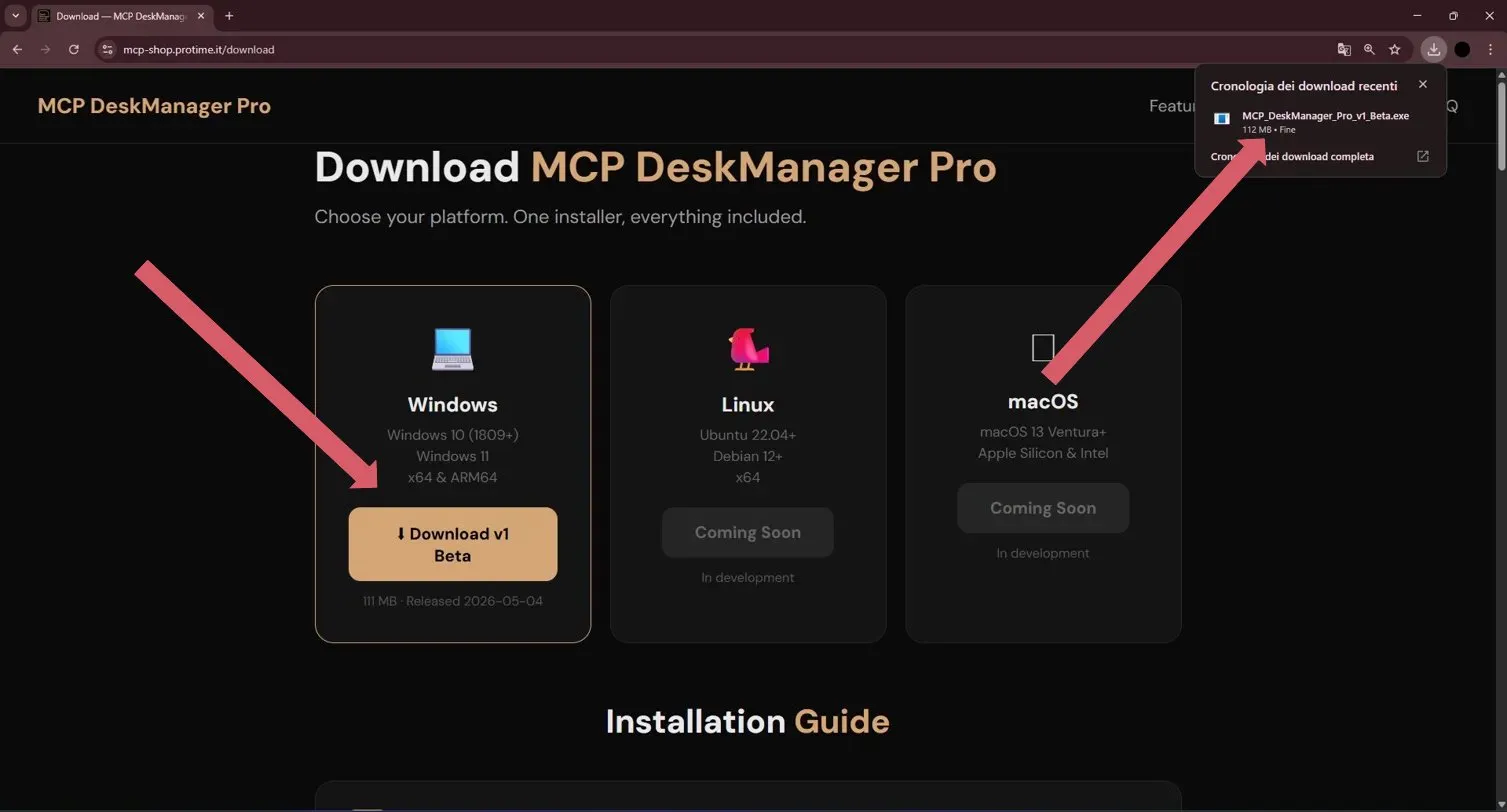
- Read and accept the license agreement.
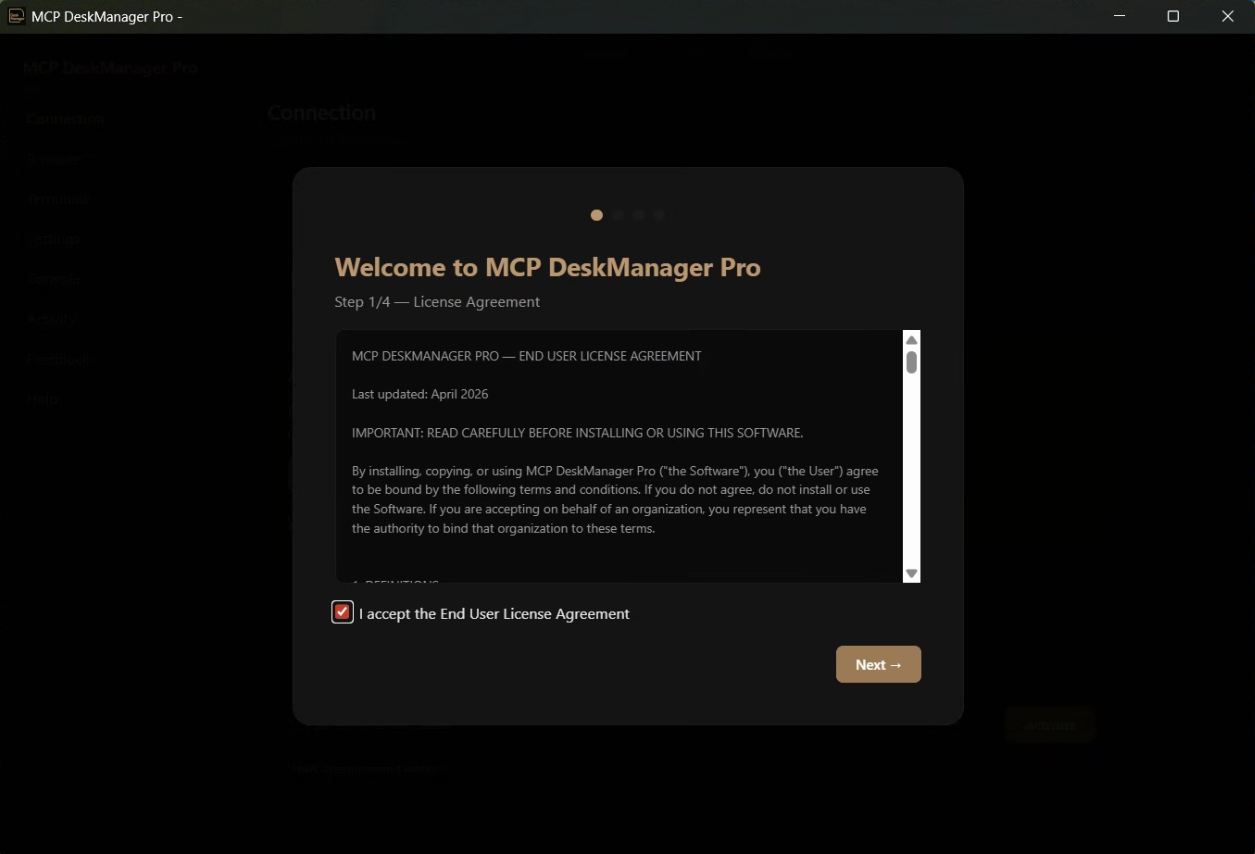
- Let it install the suggested dependencies: the installer fetches what it needs, nothing to install separately.
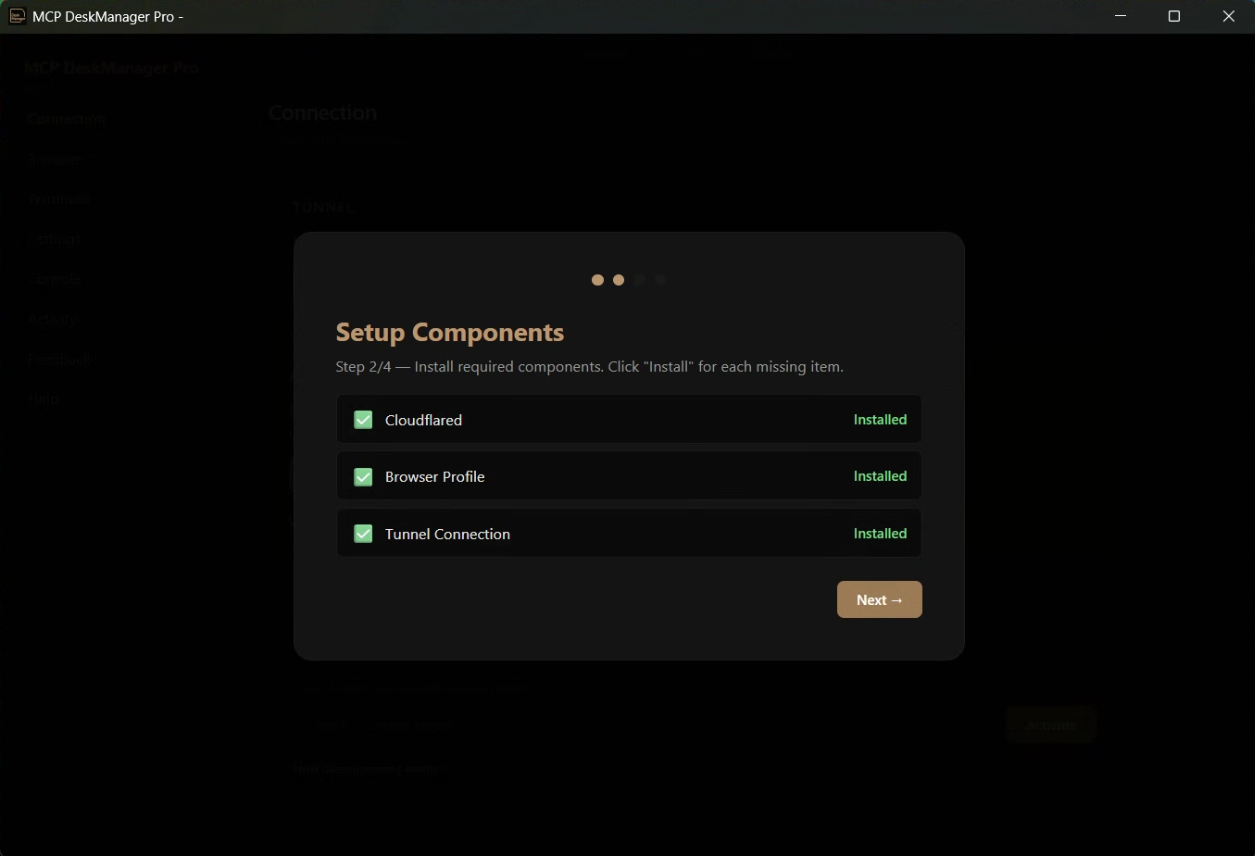
- Enter the license key you received by email.
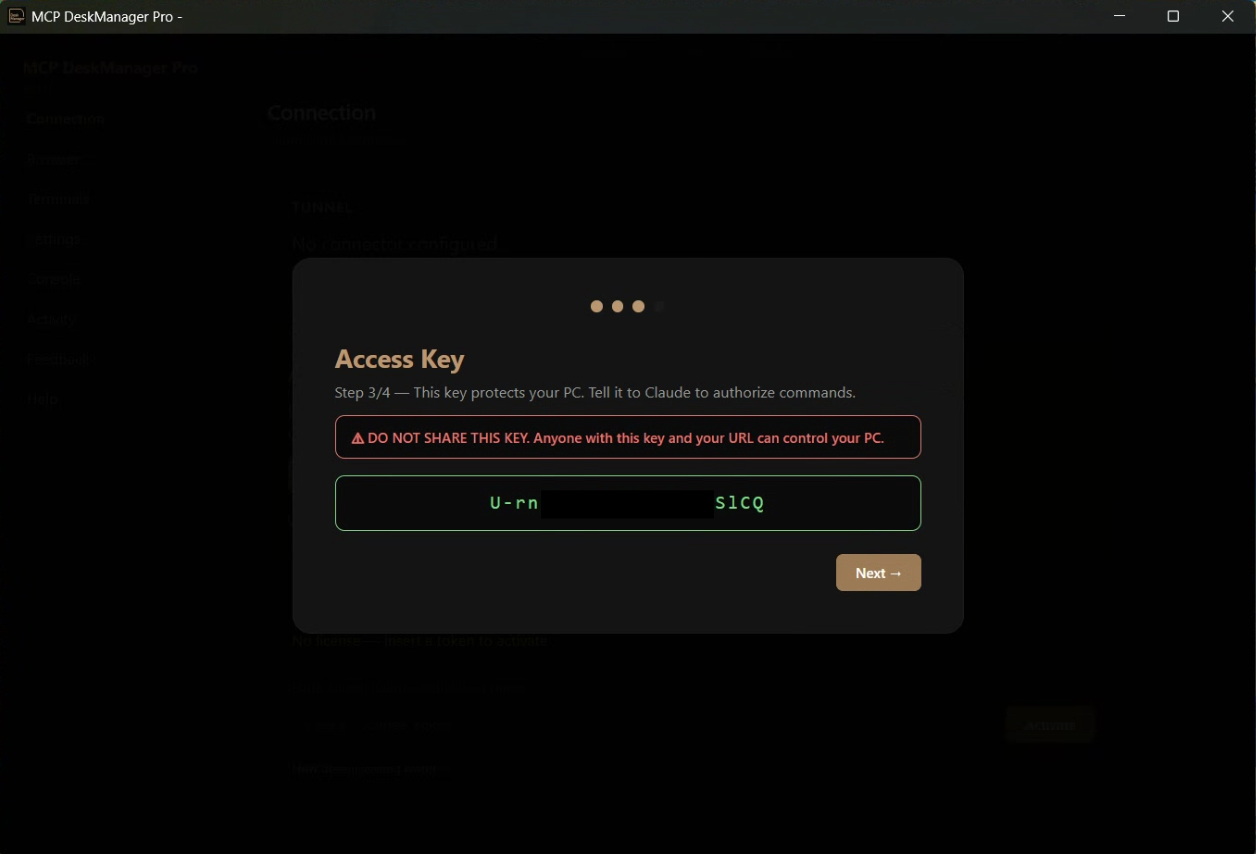
- Copy the tunnel address the app shows you: it is your PC's private address.
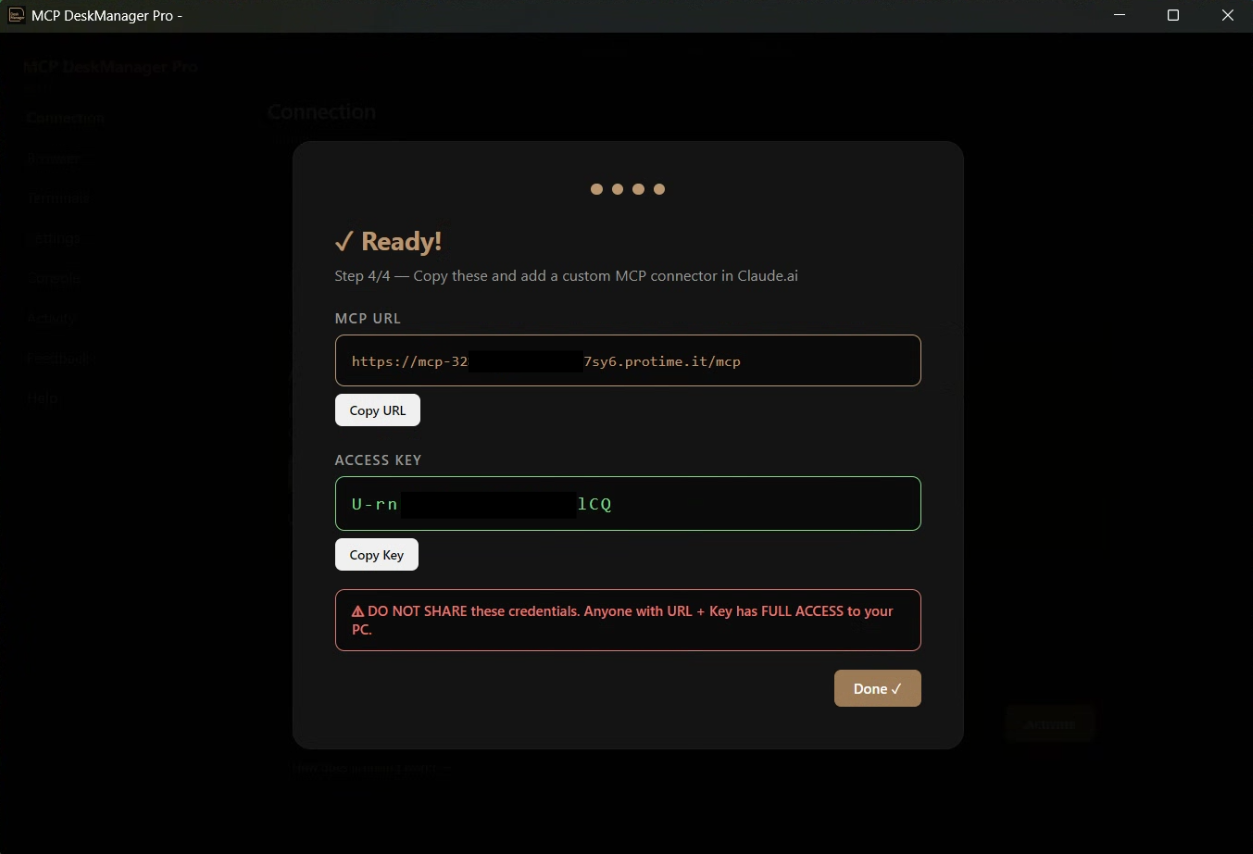
- In Claude open Settings → Connectors → Add custom connector and paste the address. In ChatGPT the process is the same, in the connectors section.
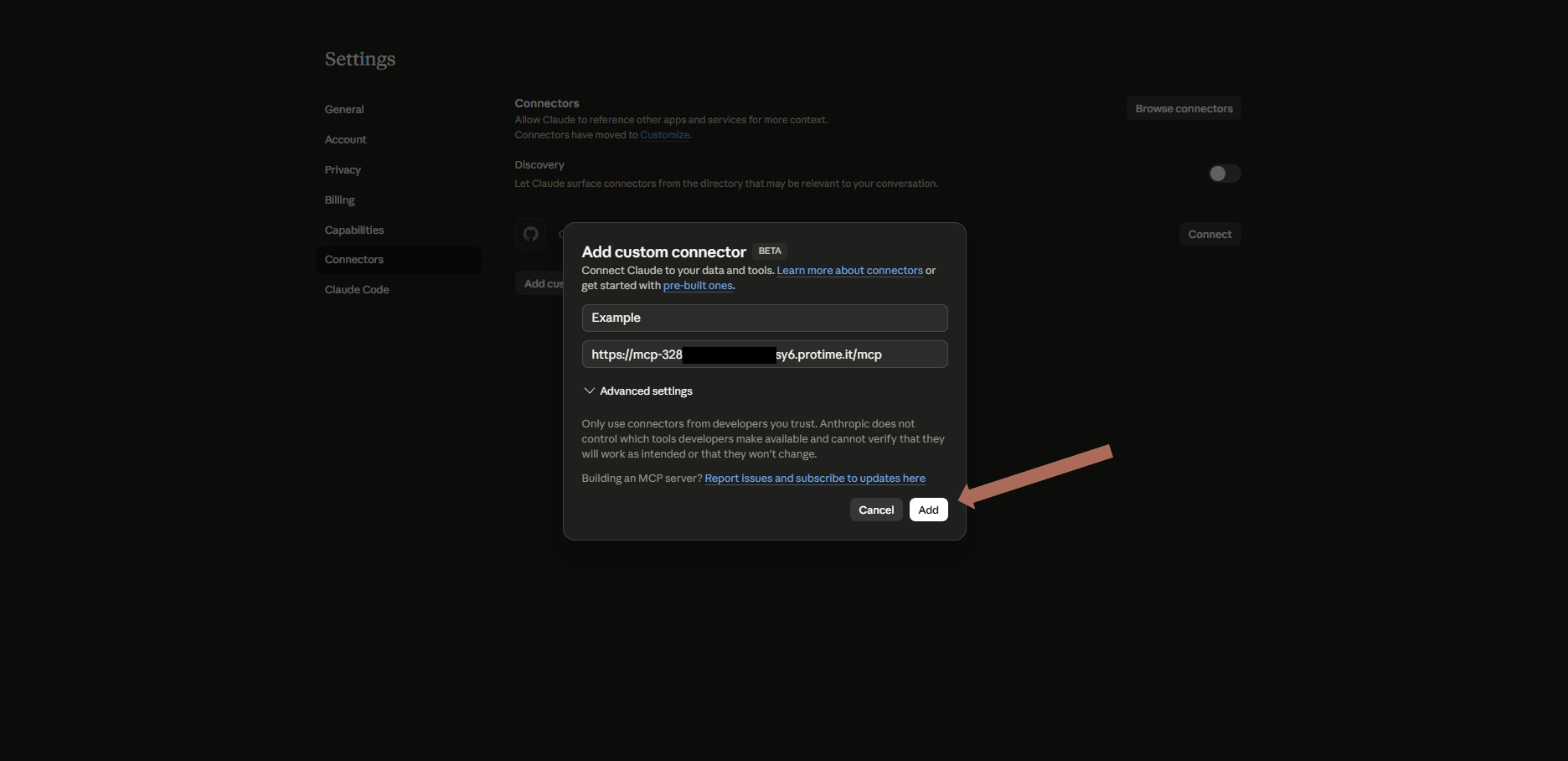
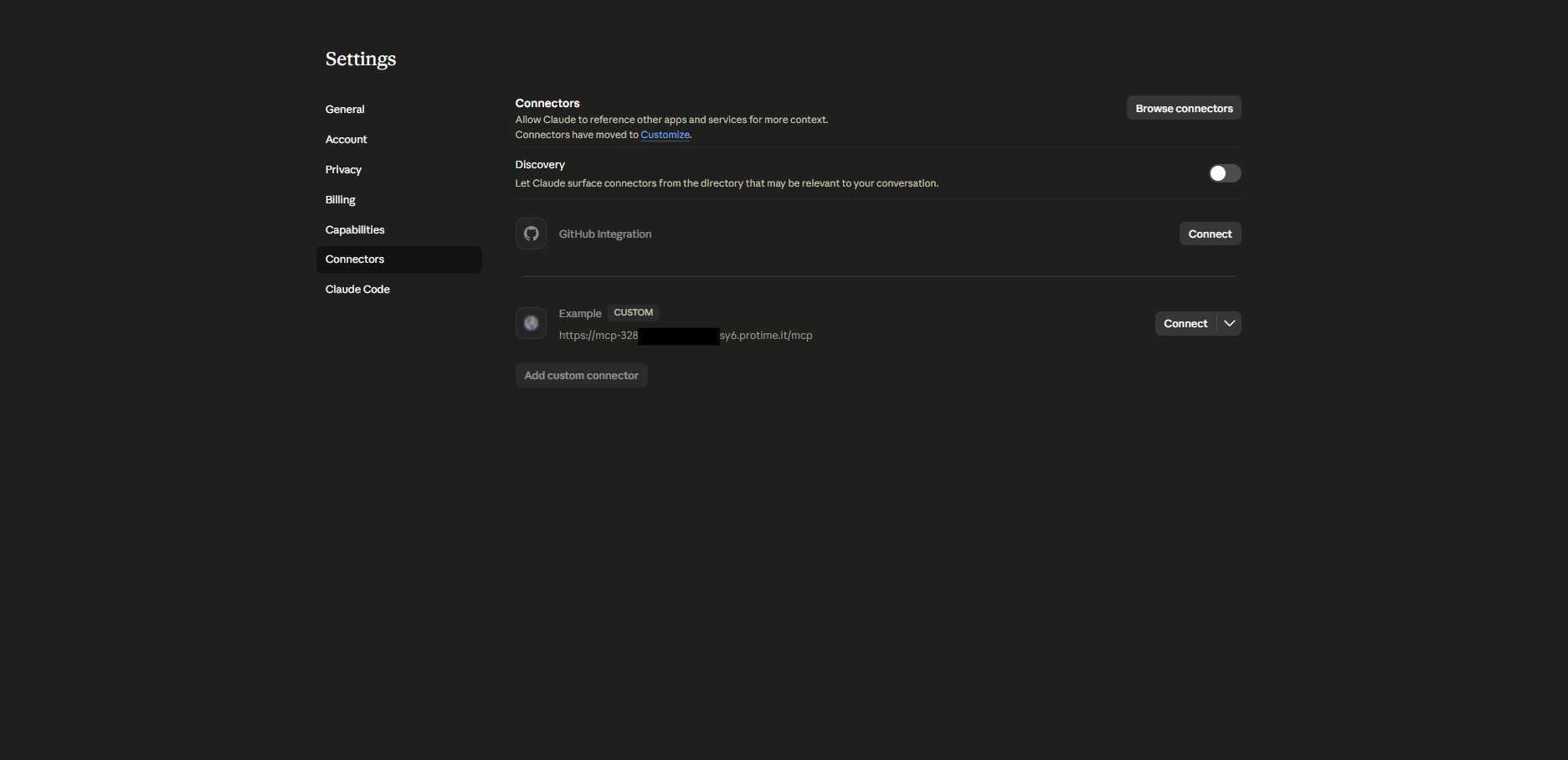
- Confirm the connection.
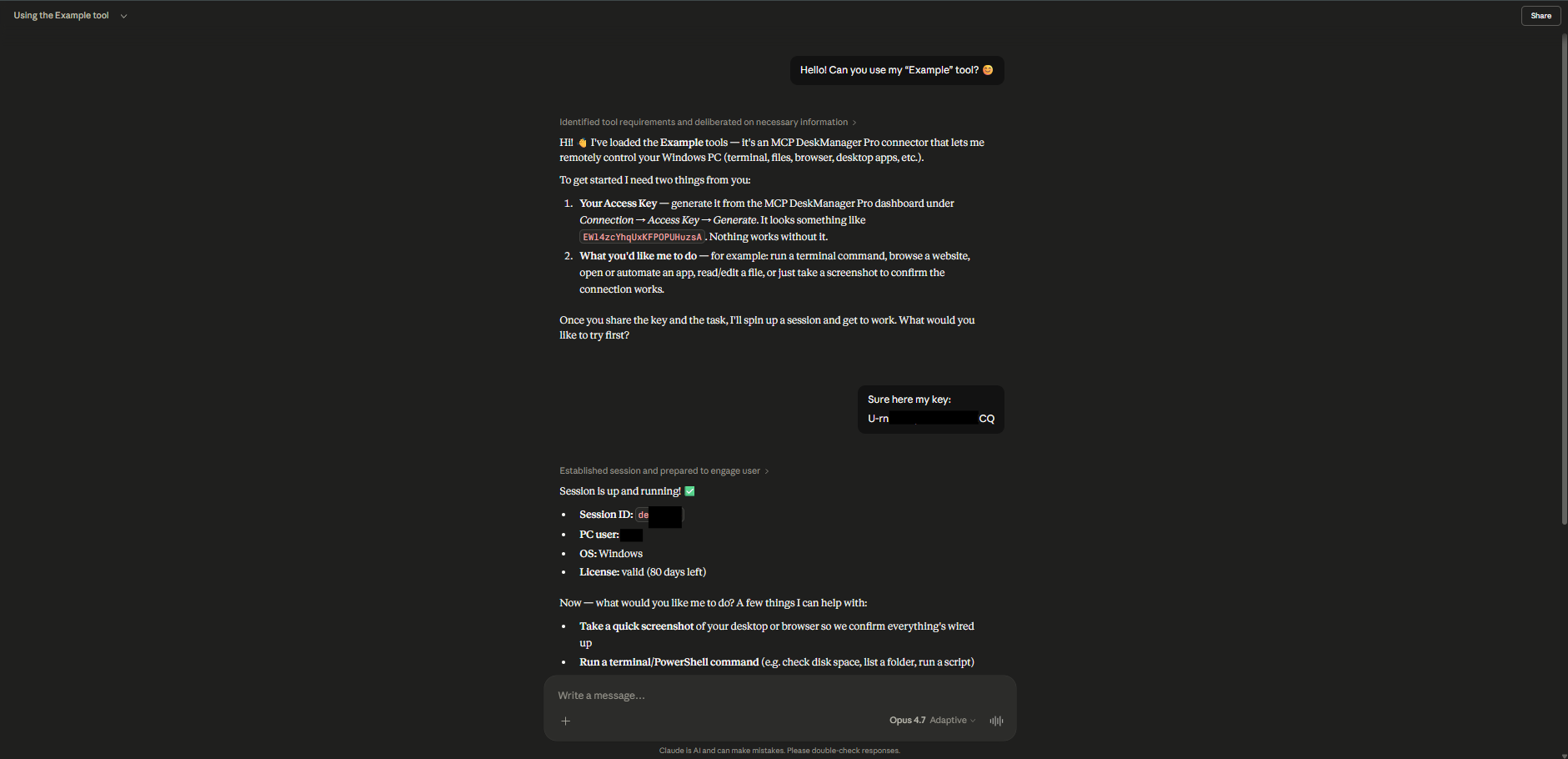
- Done: write in the chat and the PC answers.
What happens behind the scenes
During setup DeskManager creates an encrypted Cloudflare tunnel with a unique address: the PC becomes reachable by the assistant without opening ports and without exposing your IP. Every connected assistant gets its own connection key with a switch, so you can disconnect one without touching the others. Operations that cannot be undone ask for confirmation, and secrets typed into commands are masked before anything is saved.
Your first test
Once connected, start with simple requests in plain English:
- “How much free space is left on drive C?”
- “List the files on my Desktop.”
- “Open Chrome on a weather site and tell me tomorrow's forecast.”
From here the assistant uses the PC's terminal, files, browser and programs for you. The full list of tools is in the documentation.
Frequently asked questions
Do I need to know how to code?
No. There are no files to edit and no commands to type: the setup is guided.
Do I need to open router ports or have a fixed IP?
No. The connection runs through an encrypted tunnel created automatically.
Can I use it from my phone?
Yes. Once the connector is on your account it works wherever the assistant works, mobile app included. The PC does the work; the phone just carries the conversation.
Does the PC need to stay on?
Yes, the controlled computer must be on and online. After a reboot DeskManager reconnects by itself.
Does it work with ChatGPT too?
Yes, as a custom MCP connector, where your ChatGPT account allows it.
Ready to try it on your own PC? Setup takes about ten minutes.
Download MCP DeskManager See the plans